Sending SMS messages and configuring templates
How to send text messages to patients from the inbound calls page, and how to manage templates under Practice Settings.
Send an SMS straight from the call drawer
On the inbound calls page, any patient with a mobile number on file can receive a text. The options shown in the dropdown are editable before sending.
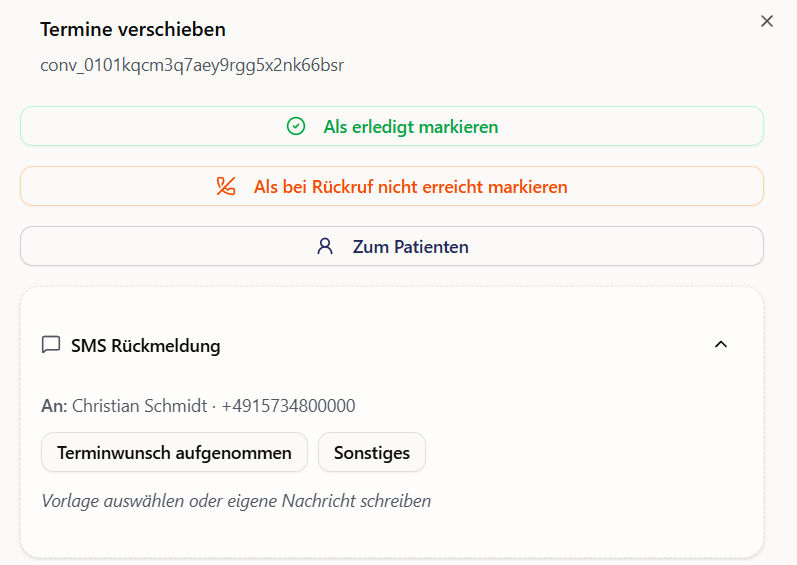
As soon as you select a template, a preview of the filled-in message appears, so you can see exactly what the patient will receive.
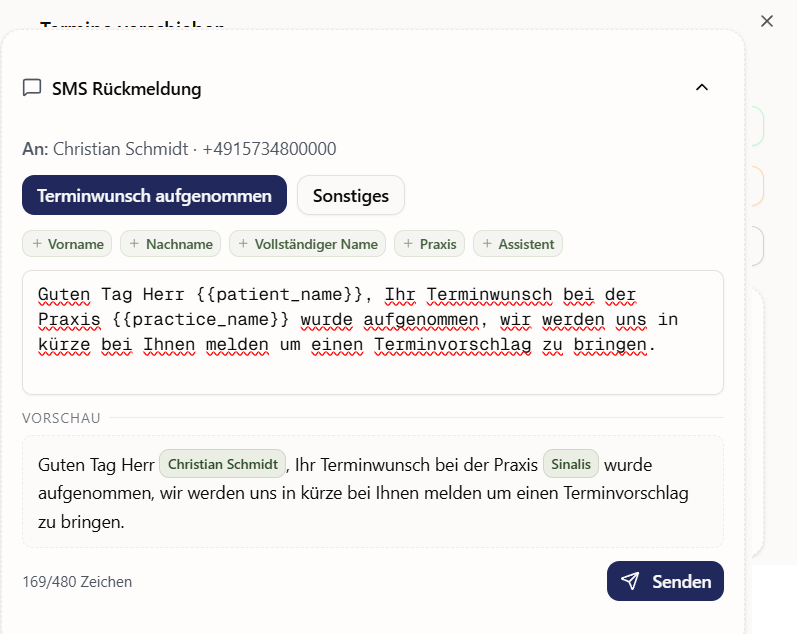
You can still edit the previewed text before sending – useful when a note needs a more personal touch.
Manage templates under Practice Settings
The settings page for SMS templates lives at:
Practice Settings → Agent Data → SMS Building Blocks
From this page you can delete existing templates, edit them, or create new ones.

Create a new SMS template
When you create a new template, the editor opens. Here you define all parts of the template.
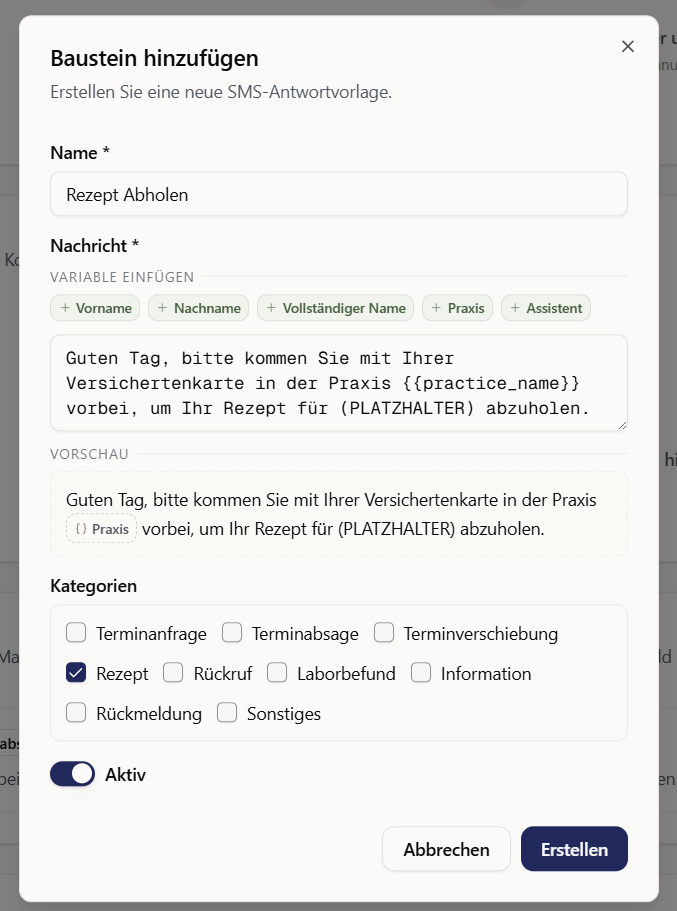
Title
The title describes the template – it appears as the clickable button on the inbound calls page. Pick a title your team recognizes instantly (e.g. "Appointment confirmation", "Prescription pickup").
SMS content
The actual message body. You can insert placeholders for patient data (e.g. first name), which are filled in automatically when the message is sent.
Categories
Categories control which calls the template is offered for:
- You can pick any of the categories pre-defined by Sinalis.
- You can also create and select your own custom categories.
- The template only shows up for calls assigned to one of those categories.
- If you select no category, the template appears for every call type.
Tip: keep templates short and specific. Many carriers split longer messages into 160-character segments.